Welcome to the new Vantage experience!
This marks the first phase of a multi-phase user experience initiative aimed at modernizing the Vantage platform and delivering a more streamlined, intuitive experience for our clients.
This phase of the effort includes redesigned versions of the Request a Benchmark Report, View All Submitted Deals and Deal Details pages. This document provides a walk-through of these changes.
We look forward to hearing your feedback!
Accessing the New User Experience
To make the transition as smooth as possible, you'll be able to switch between the new and legacy views for the next few weeks while you get comfortable with the updated experience.
To enable the new user experience, click on "Try the New Experience" at the top of the Home Page:

To return to the legacy view, click on "Legacy View" at the top of the Home Page:

Request a Benchmark Report Changes
We've redesigned the Request a Benchmark Report page to reduce clicks, group form fields more logically, and to make submitting a request quicker and easier.
STEP 1: Select Supplier(s)
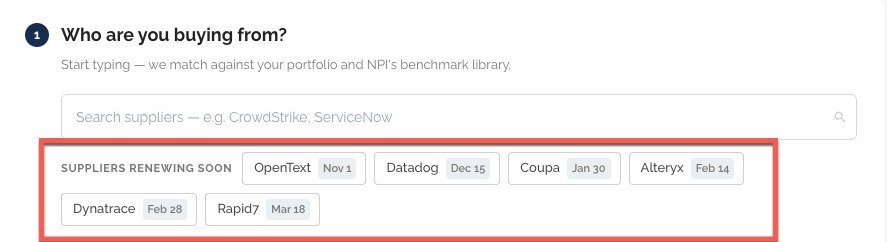
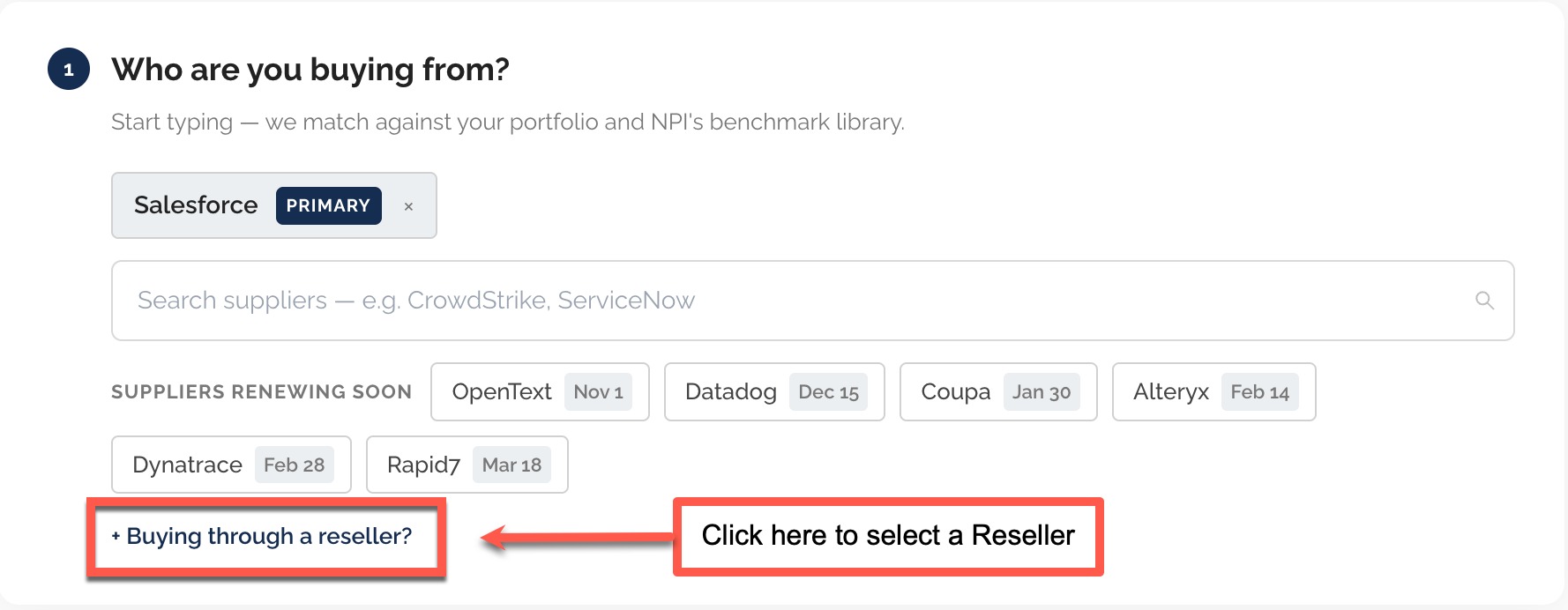
Vantage now provides you with a list of suppliers whose contracts will be renewing soon along with their expected renewal date. This allows you to select a supplier without having to search for it, and alerts you to upcoming renewals that may not be on your radar. Simply click on the supplier name to select it for your submission request.
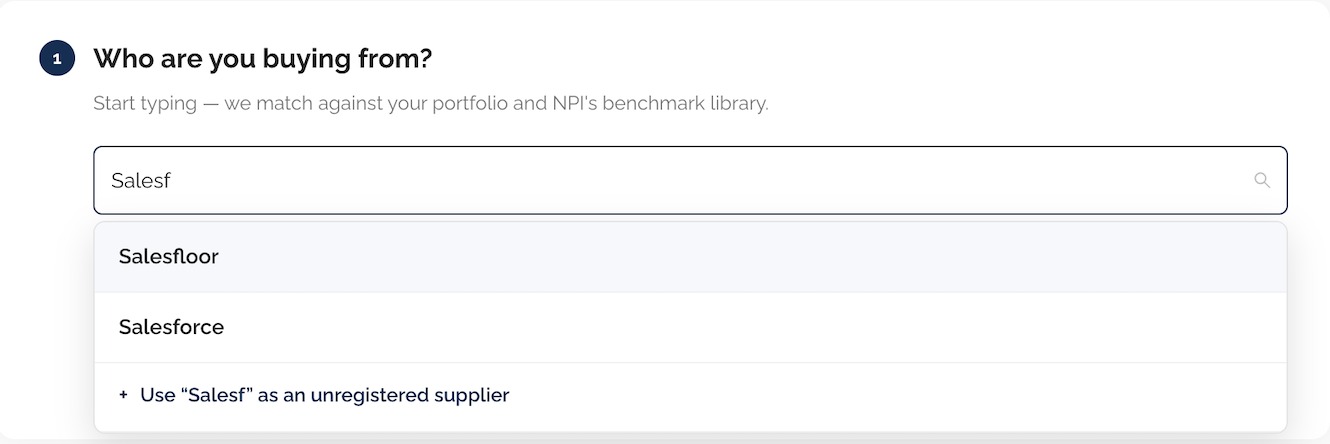
To select a different supplier from those provided in the "renewing soon" list, enter the supplier's name or the first few letters of the name in the search field. Vantage will display a list of matching suppliers for you to choose from.
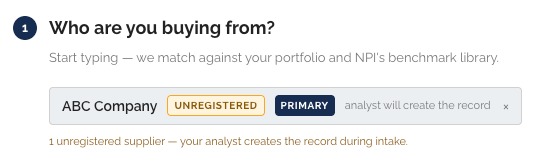
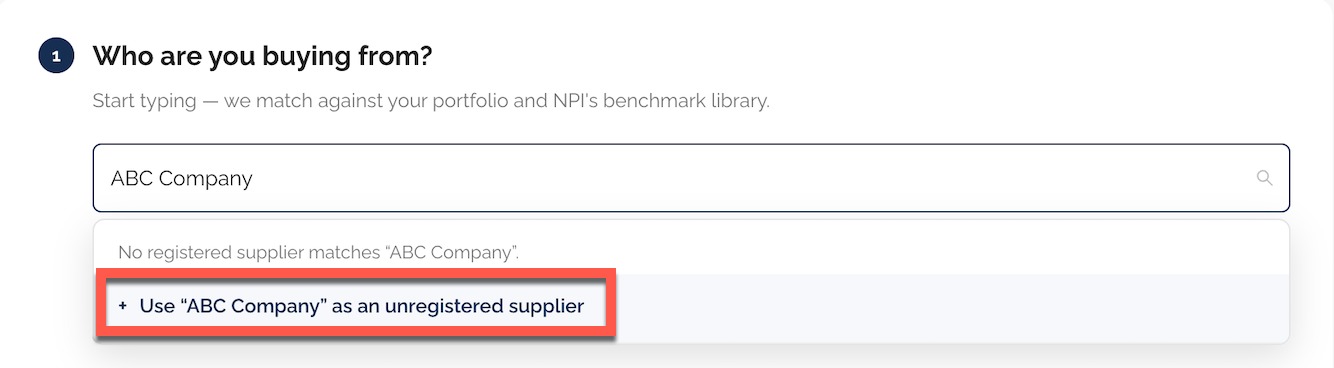
If the supplier you are searching for doesn't return in the search results, click to use it as an unregistered supplier. This will submit a request to NPI to check whether the supplier is listed under another name or, if not, to add to the registered list.
Reseller: To select a Reseller for this purchase, click the "Buying through a reseller?" link at the bottom of the Select Supplier window and follow the same search and selection process as above.
STEP 2: Purchase Type
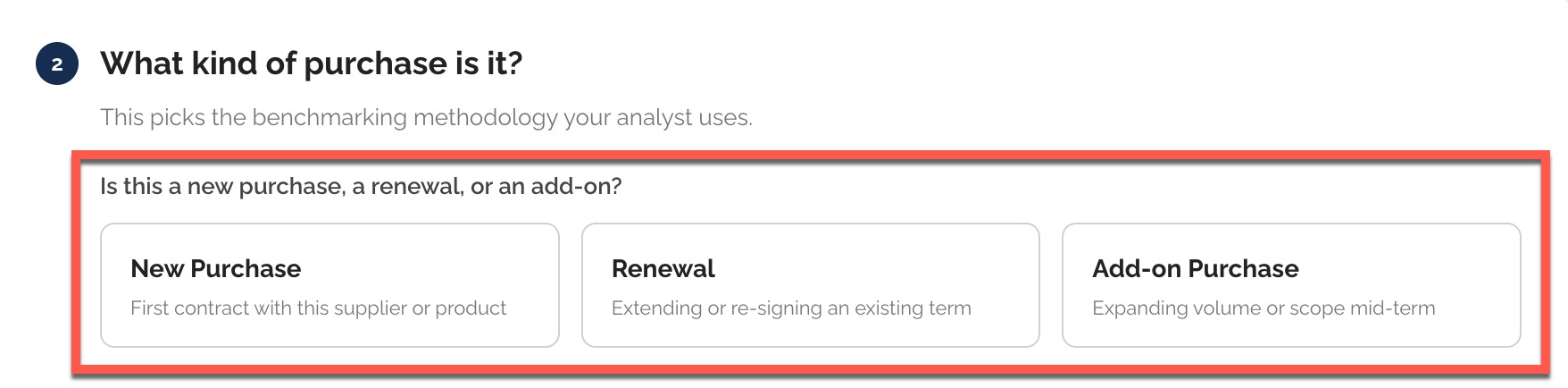
Tell us if this is a New Purchase, Renewal or Add-On Purchase by selecting the applicable option.
Next, you'll see a list of report types available to you, based on what your organization has purchased or is licensed for. For example, if your organization has purchased an unlimited FMV license and 5 Quick Check reports, those are the only options you'll see in the Report Type Requested drop-down.
In the example below, the organization is licensed for an unlimited FMV subscription, 5 PRISMs, 50 Quick Checks and 30 Research Requests. They are not licensed for a Portfolio Analysis or Contract Retrospective and therefore those options don't display.
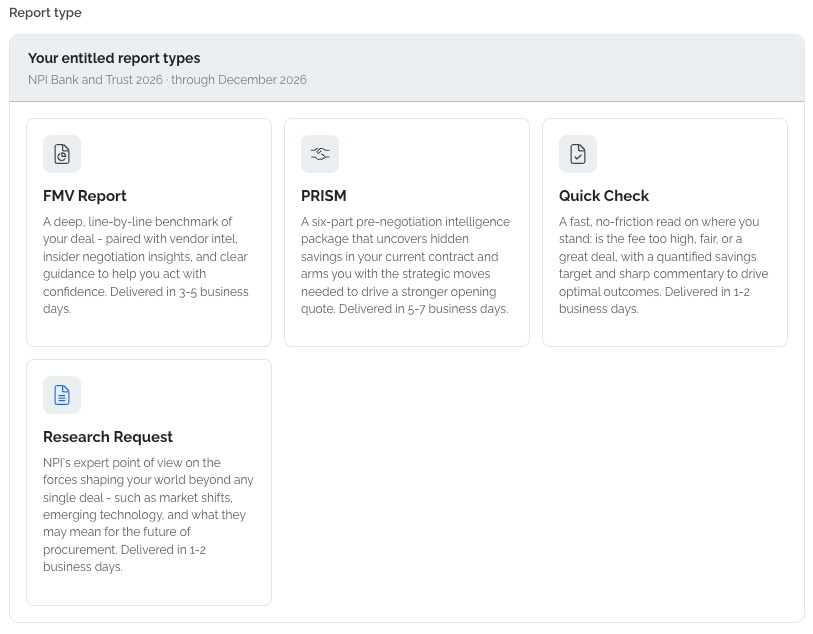
The list of possible report options here includes:
Quick Check
A fast, no-friction read on where you stand: is the fee too high, fair, or a great deal, with a quantified savings target and sharp commentary to drive optimal outcomes. Delivered in 1-2 business days.
FMV
A deep, line-by-line benchmark of your deal — paired with vendor intel, insider negotiation insights, and clear guidance to help you act with confidence. Delivered in 3-5 business days.
Research Request
NPI's expert point of view on the forces shaping your world beyond any single deal — such as market shifts, emerging technology, and what they may mean for the future of procurement. Delivered in 1-2 business days.
PRISM (New!)
A six-part pre-negotiation intelligence package that uncovers hidden savings in your current contract and arms you with the strategic moves needed to drive a stronger opening quote. Delivered in 5-7 business days.
Portfolio Analysis (New!)
A full assessment of your vendor estate that surfaces risk and opportunity across every contract, then translates the findings into a prioritized roadmap targeting your highest-ROI moves first. Delivered in 3-5 business days.
Contract Retrospective (New!)
A rapid, focused review of your active vendor agreement that checks pricing competitiveness, contract risk, untapped opportunity and renewal readiness. Delivered in 2-3 business days.
To learn more about our new offerings, contact your NPI Client Success Manager.
Finally, add a Deal title and let us know if you want this deal to display on the Smart Calendar. The Deal title will pre-populate with the supplier name and type of purchase, but can be changed to any name you choose. Check the "Show on Smart Calendar" box to have the request display on the Smart Calendar; uncheck it to remove it.

STEP 3: Situation Summary
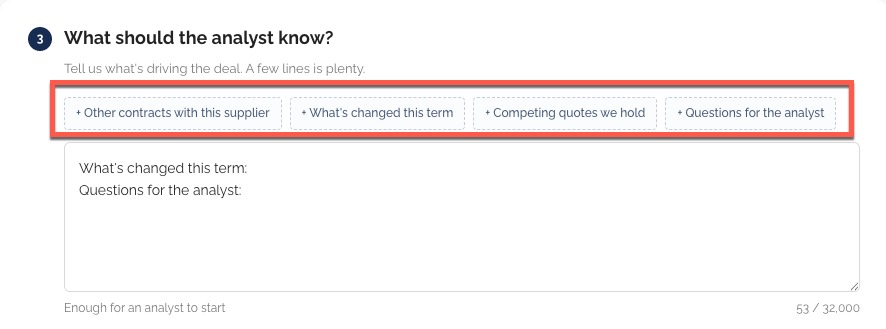
Use this section to share any additional context about this purchase, such as other contracts you have with the same supplier, or relevant past experience with them. You can also document questions that you'd like answered by the analysis here.
STEP 4: Deal Contacts
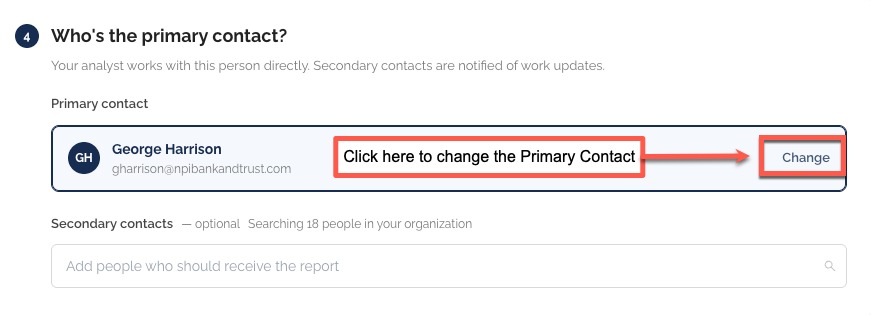
Primary Contact: This field is pre-populated with the name of the person submitting the form. To change it, click "change" and choose a new name from the drop down list. The Primary Contact is the main point of contact for any questions related to your submission, and is also listed in Key Contacts on the Deal Details page.
Secondary Contact: Select an optional secondary contact for this request. The Secondary Contact is notified of deal updates, and also listed in Key Contacts on the Deal Details page.
STEP 5: Attach Documents
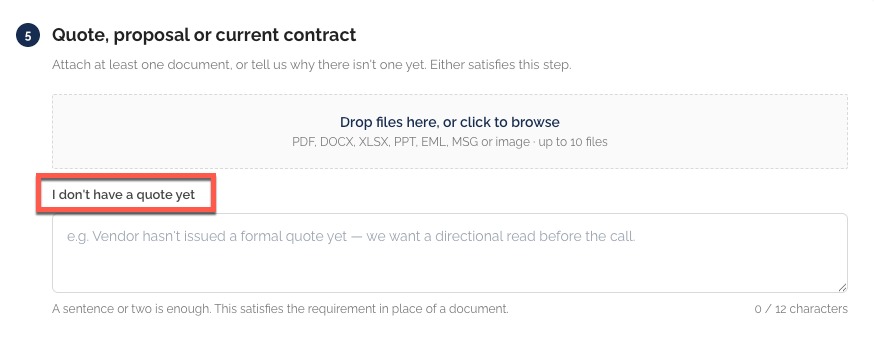
Upload Files: Upload the files you would like reviewed as part of the analysis. You can upload up to 10 files in Excel, PowerPoint, PDF, DOCX, EML, MSG and image formats. If you need to send a saved email as part of the review, please convert it into PDF format first.
NOTE: While it is better to have quotes and other attachments to review for the analysis, we understand they may not be available at the time of submission. If you don't have any documents to attach, select "I don't have a quote yet" and provide us with any additional information or guidance that will help your NPI Analyst understand your needs related to this request.
STEP 6: Timing & Contract Dates
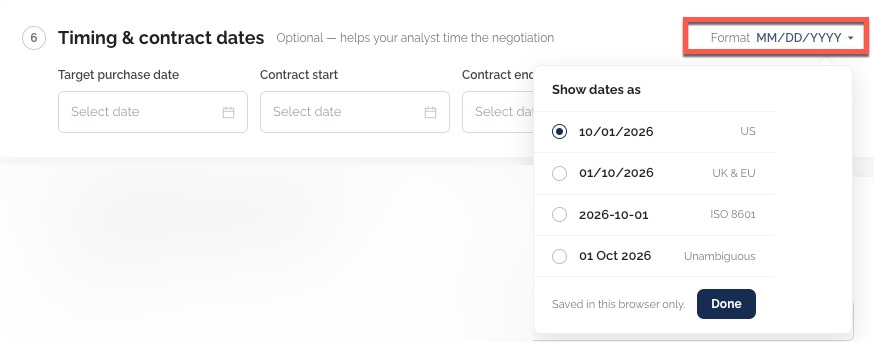
Target Date: Next, tell us about the timing of the purchase. When would you like the negotiations completed?
Contract Start and End Date: Select the contract start and end date for your submission. Doing so will ensure that the contract displays correctly in the Smart Calendar. For contracts that don't have an end date, just enter a start date. To change the date format, choose your preferred format from the format drop-down.
Notice Period: Let us know if there is a contract notice period that needs to be factored into this review.
STEP 7: Custom Fields
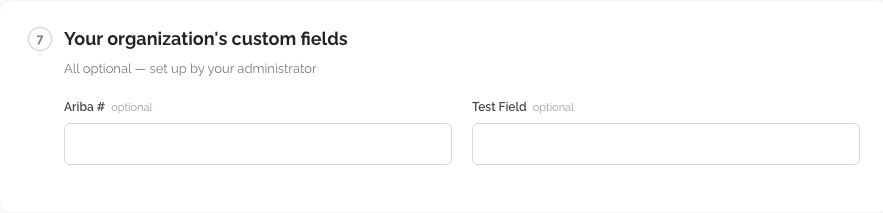
If your Vantage Administrator has set up custom fields for your organization, they'll appear here.
STEP 8: Categories and Tags
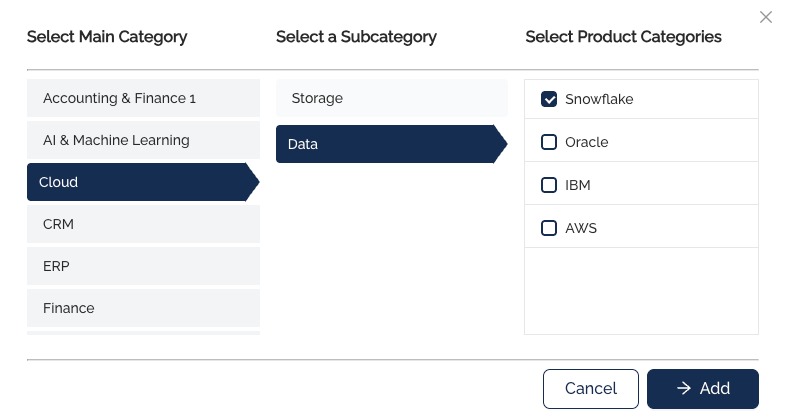
Categories: If your Administrator has configured custom categories for your organization, you will be able to select them here. To do so click "Add Category" and select the appropriate main category, subcategory and (where applicable) product category for this request. This picker will be empty if custom categories have not been configured for your organization.
Tags: If your Administrator has configured tags for your organization, you can select them here. Tagging a request lets you filter deals by those tags on the Smart Calendar and View All Submitted Deals pages.
STEP 9: Submit Your Request
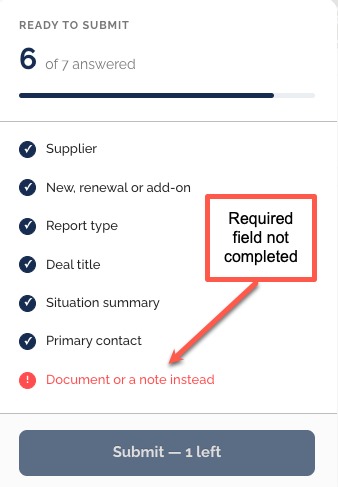
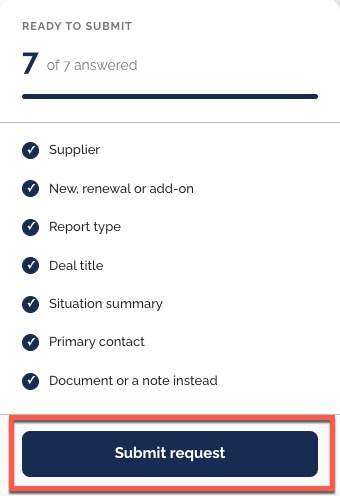
Once you've completed all the required fields, click the Submit Request button on the right-hand side of the page. If any required fields are missing, Vantage will let you know which ones need to be completed before you can submit.
All Submitted Deals Changes
The All Submitted Deals page has been redesigned with a more prominent display of key deal metrics and reorganized for better top to bottom flow. The Report Status filter has been moved to the top of the page and additional deal, vendor, date range, etc. filters have been moved directly above the deal list.
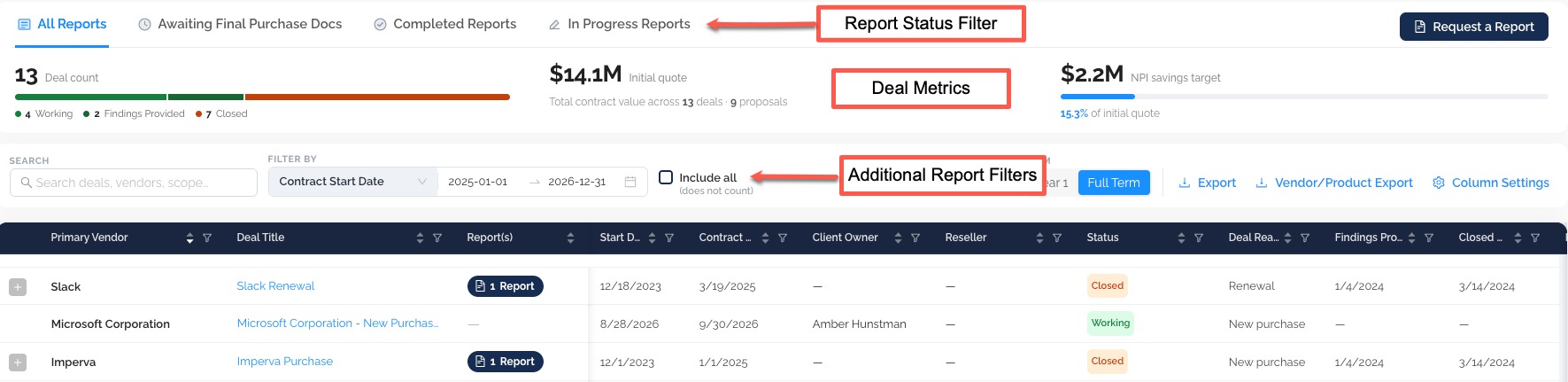
The content, columns and customization options on the All Submitted Deals page essentially remain the same. However, we've introduced a new concept at the Deal level called Proposals, to help you better organize the components of a sourcing event.
PROPOSALS
Proposals organize the various elements of a sourcing event – such as proposed term options (ex: 1 year vs 3 year), quote versions and add-ons – into individual proposals. This makes it easier to track and compare different versions of sourcing event components, and provides more visual clarity inside Vantage, making it easier for you to quickly find the quote specific details you need. Proposals can also be viewed in the Smart Calendar.
Proposals are created by NPI after you submit your report request.
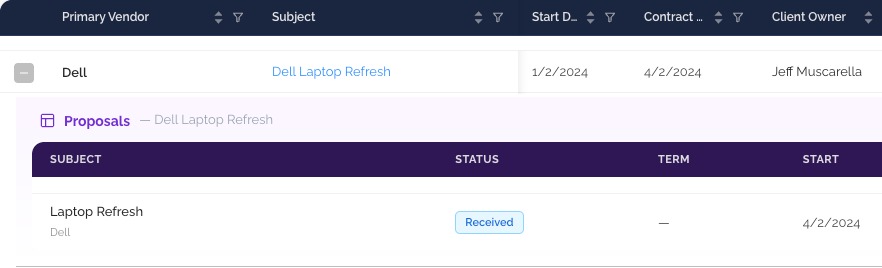
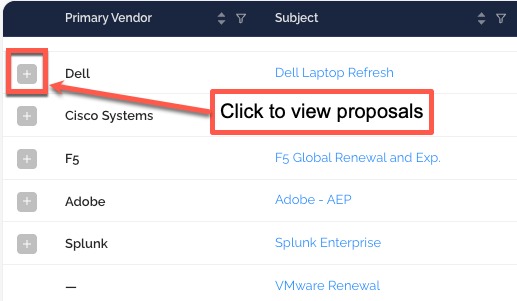
*IMPORTANT NOTE* - for existing deals, all sourcing event documentation will be captured in a single proposal. For deals submitted via the new user experience, new vendor documents will be captured as separate proposal documents.
Deal Details Changes
The Deal Details page has been redesigned for better readability and a more intuitive flow.
At the top of the page you'll find the navigation menu - click any section name to jump straight to that part of the page. Submission status and supplier and reseller information is also displayed here, along with the Edit option for updating deal details.

DEAL SUMMARY
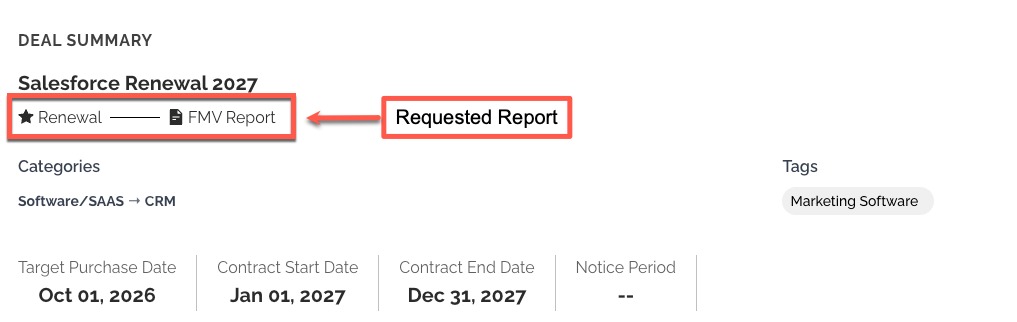
The Deal Summary section highlights the most recently requested report type, any category and tag assignments, and key contract dates:
DELIVERABLES
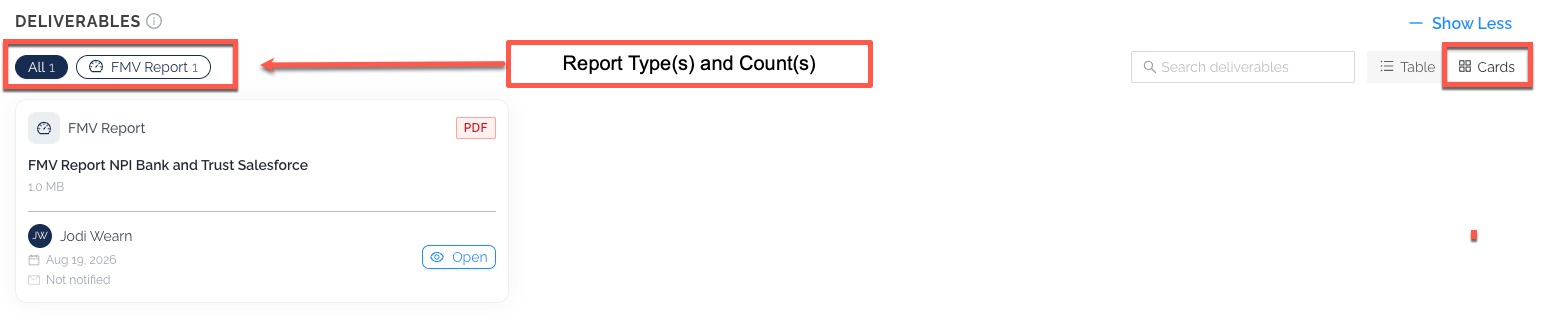
The Deliverables section is where you'll find the reports you've requested from NPI, including FMV, Quick Check, PRISM, Portfolio Analysis, Contract Retrospective, and Research Requests. Reports can be viewed in one of two ways:
Table View: displays every deliverable in a sortable table, showing the service type, format, creation date, and assigned analyst at a glance.

Card View: presents the same deliverables as individual cards offering a more visual layout for browsing reports one at a time.
DEAL FINANCIALS
The Deal Financials section tracks the numbers that matter most for this engagement: the vendor's initial quote, NPI's savings target, and the savings achieved so far. Use the Year 1 / Full Term toggle to switch between first-year figures and totals across the full contract term.

CONTACTS & SITUATION SUMMARY
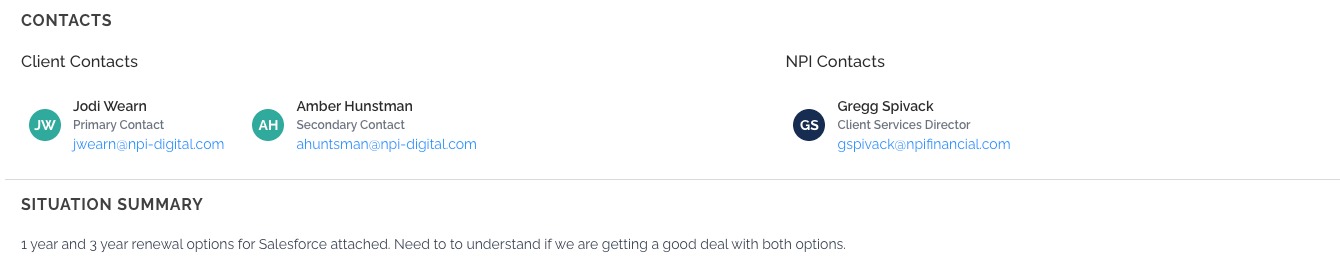
The Contacts panel lists everyone connected to the deal – your contacts on the left and NPI contacts on the right along with each person's role and email address. Below it, the Situation Summary is the short narrative that was provided at the time of submission.
DOCUMENTS
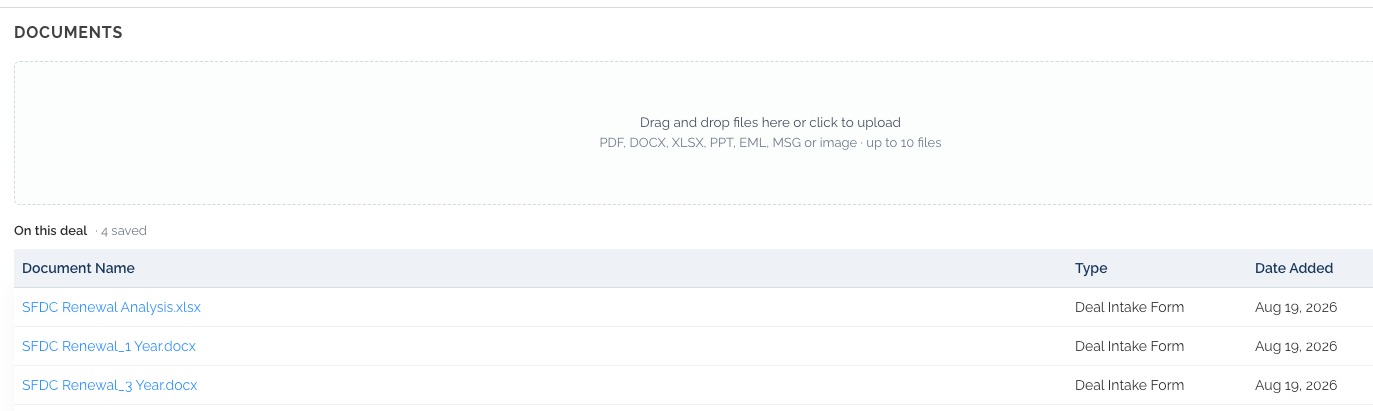
The Documents section contains the supporting files for this deal including those provided at submission and any added afterward. You can add more files at any time.
PROPOSALS
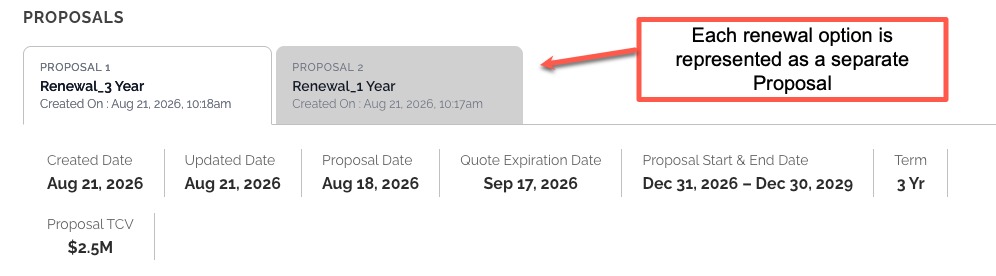
The Proposals section captures each pricing or renewal option the supplier has put forward. As the callout notes, every renewal option is tracked as its own separate proposal, so a 1-year and a 3-year renewal, for example, appear on two different tabs. Select a tab to see that proposal's key dates and terms, including the proposal date, quote expiration date, proposal start and end dates, term length, and total contract value.
SUPPLIER DYNAMICS
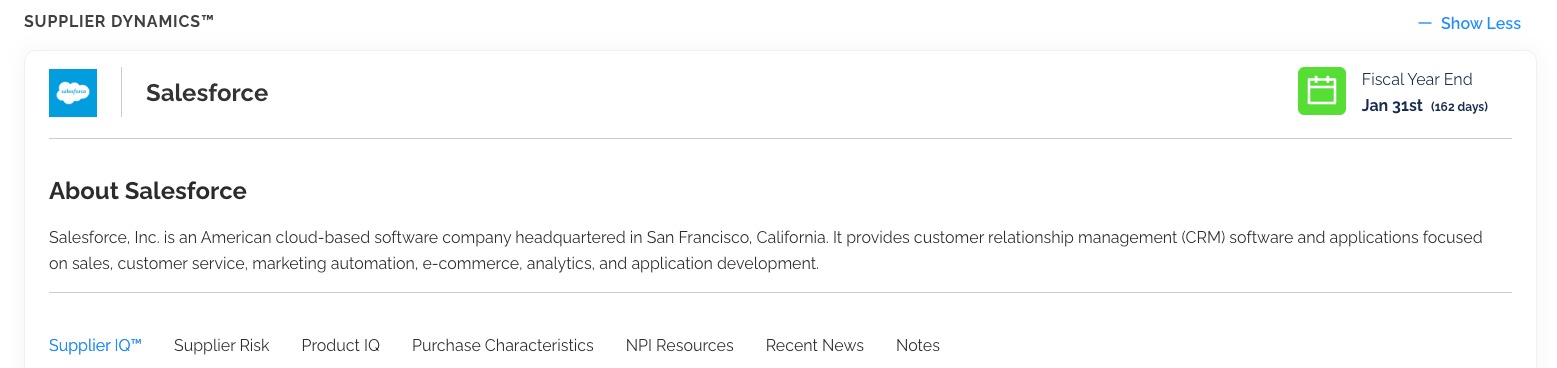
The Supplier Dynamics™ section is available at the bottom of the page.
Questions?
Still have questions? We're here to help! Reach out to support@npifinancial.com at any time.
Was this article helpful?
That’s Great!
Thank you for your feedback
Sorry! We couldn't be helpful
Thank you for your feedback
Feedback sent
We appreciate your effort and will try to fix the article