Overview
This guide walks you through setting up API access to NPI's Supplier IQ reports. The process has three parts:
- Generate your API credentials (Client ID and Client Secret) in NPI Vantage.
- Access NPI's Swagger API documentation.
- Retrieve Supplier IQ reports using a two-step API process: search for the supplier, then request the Supplier IQ report.
NPI Vantage uses the OAuth 2.0 framework for authorizing machine-to-machine interactions, allowing one application (e.g. your API) to access protected resources on behalf of another resource owner (e.g. NPI's Vantage API). The client credentials grant is used for this purpose.
Step 1: Generate API Credentials in NPI Vantage
Log in to NPI Vantage.
Open Account Settings (gear icon in the top-right navigation bar).
In the left-hand menu, under Integrations, select NPI Integration.
You will see the NPI Vantage Integration screen:
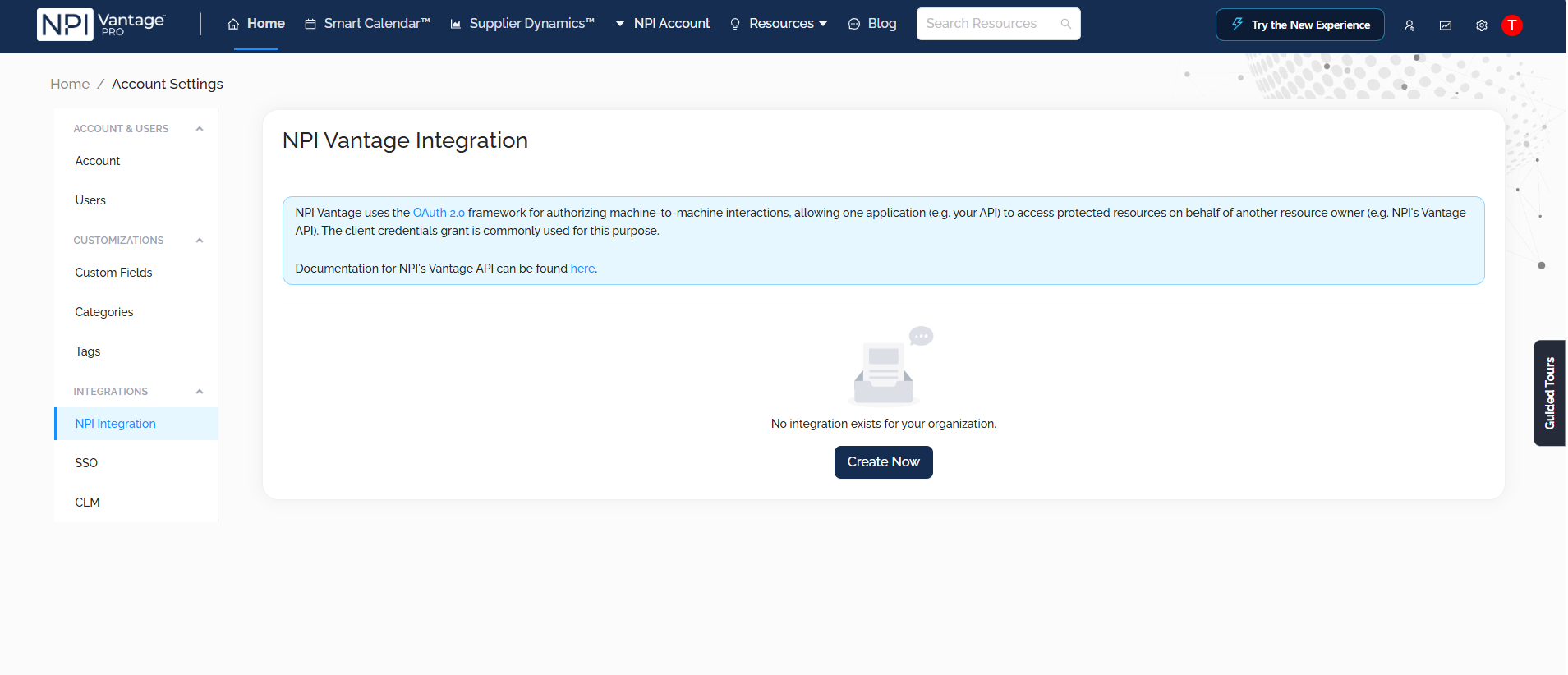
If no integration exists for your organization, click Create Now.
Your Client ID and Client Secret will be generated. These are your API credentials.
Important: Treat your Client Secret like a password. Store it securely (e.g., in a secrets manager or vault) and do not share it or commit it to source code.
Step 2: Access NPI's Swagger API Documentation
NPI's API documentation is hosted in Swagger and provides full instructions for API integration.
- URL: https://api-dev.npi-digital.com/v2/docs-client/#/
- Username: swagger
- Password: costello-lament-wrapper-percival
Authenticating in Swagger
The endpoints are protected (indicated by the lock icon next to each endpoint). To make test calls from Swagger:
- Use your Client ID and Client Secret from Step 1 to obtain an access token via the OAuth 2.0 client credentials flow.
- Click Authorize in Swagger and provide your credentials/token.
- Once authorized, you can test the endpoints directly from the Swagger page.
Your application will follow the same pattern: request an access token using your Client ID and Client Secret, then include that token in the Authorization header of each API request. Refer to Swagger for the token endpoint and exact request format.
Step 3: Retrieve a Supplier IQ Report (Two-Step Process)
In Swagger, go to the Supplier Integration section. The two endpoints you need are:
| Order | Method | Endpoint | Description |
|---|---|---|---|
| 1 | GET | /v2/supplier/search | Search Supplier |
| 2 | GET | /v2/supplier/{id}/report/iq | Get supplier IQ report by supplier ID |
 3a. Search for the Supplier
Call GET /v2/supplier/search to find the vendor. The response returns the matching supplier(s), including the supplier ID needed for the next step.
3b. Run the Supplier IQ Report
Call GET /v2/supplier/{id}/report/iq, replacing {id} with the supplier ID returned from the search.
See the Swagger documentation for request parameters, response formats, and example payloads for each endpoint.
Quick Reference
| Item | Value |
|---|---|
| Credential location | NPI Vantage > Account Settings > Integrations > NPI Integration |
| Auth framework | OAuth 2.0 – Client Credentials Grant |
| Swagger URL | https://api-dev.npi-digital.com/v2/docs-client/#/ |
| Swagger username | swagger |
| Swagger password | costello-lament-wrapper-percival |
| Step 1 endpoint | GET /v2/supplier/search |
| Step 2 endpoint | GET /v2/supplier/{id}/report/iq |
Was this article helpful?
That’s Great!
Thank you for your feedback
Sorry! We couldn't be helpful
Thank you for your feedback
Feedback sent
We appreciate your effort and will try to fix the article