Navigating the View All Submitted Deals page in Vantage Pro from the
The NPI Account Menu
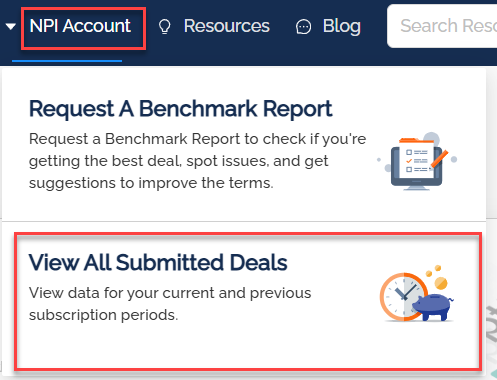
Open the NPI Account menu from the primary navigation to access your request and deal history.
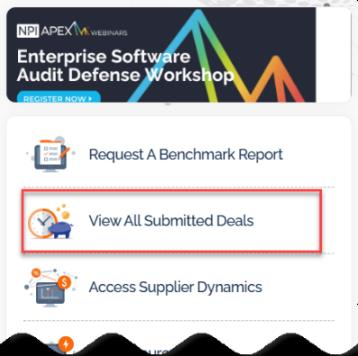
From the NPI Account menu you can:
- Request a Benchmark Report — open the new-deal request form
- View All Submitted Deals — see every deal your organization has submitted to NPI
View All Submitted Deals
The View All Submitted Deals screen is also reachable from the quick-action buttons on the Home dashboard.
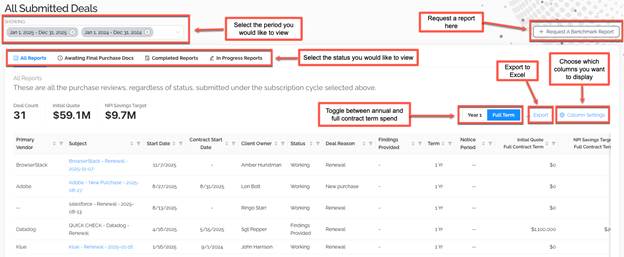
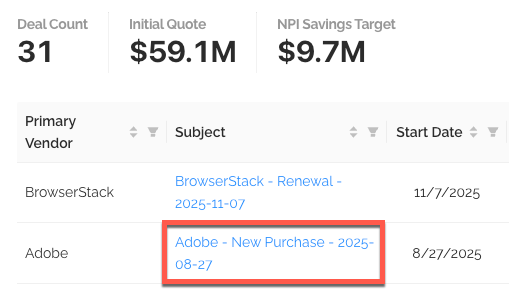
Clicking through opens the full list of submitted deals with status, supplier, TCV, requested date, and more.
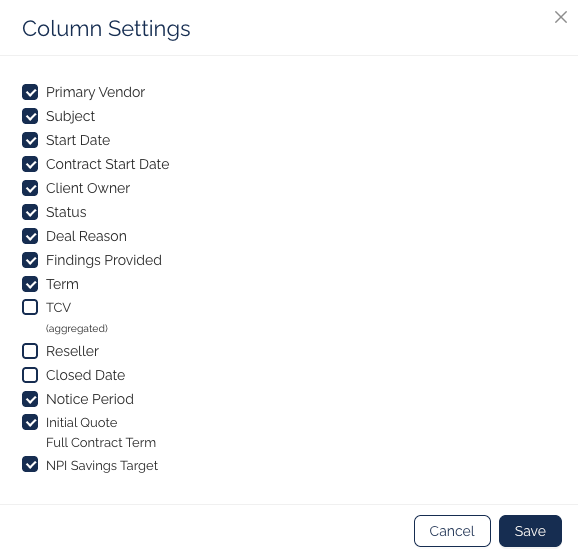
Customizing the Columns
Right-click any column header — or use the column settings icon — to add, remove, or reorder columns. Your column preferences persist across sessions.
Deal Drill-down
Click a deal to open its detail panel. From here you can review request metadata, uploaded documents, linked reports, and any related tasks.
Was this article helpful?
That’s Great!
Thank you for your feedback
Sorry! We couldn't be helpful
Thank you for your feedback
Feedback sent
We appreciate your effort and will try to fix the article